Overview
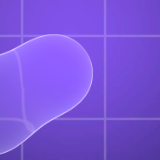
Liquid Glass is a real-time glass material for Unity UI and world-space objects, in the style of Apple's Liquid Glass: a curved lens rim that bends the background, an optional frosted blur, a specular rim light, vibrancy and optional chromatic aberration. Glass shapes inside a group melt into each other when they get close.
A URP renderer feature captures the camera image once per frame at reduced resolution and blurs it. Every glass element on screen reads that one shared capture, so adding more glass costs only the pixels it covers. All UI glass shares one material and batches into a single draw call.
Glass in one click
GameObject > UI > Liquid Glass Panel. The renderer feature is added for you.
Real lens refraction
The background bends at a curved rim, from clear glass to fully frosted, per element.
Shapes that merge
Drag one shape into another and they melt together, like iOS. One draw call per group.
UI and 3D
Canvas UI, world-space quads, meshes and sprites, with a 3D merging group.
Built for mobile
One half-resolution capture per camera, 2 texture samples per glass pixel.
Your own look
Saturation, tint, rim light, edge glow and chromatic aberration on shared materials.
Requirements
| Item | Version | Notes |
|---|---|---|
| Unity | 6 | Tested on Unity 6000.6 |
| Universal Render Pipeline | 17+ | Render Graph. Tested on URP 17.6 with the Universal Renderer |
com.unity.ugui | 2.0+ | For the UI components |
com.unity.inputsystem | 1.7+ | Optional Only for dragging in the demo; the legacy Input Manager works too |
The Built-in Render Pipeline and HDRP are not supported.
Quick start (UI)
- Import the package Everything lands in
Assets/HardArtcore/LiquidGlass. - Create a panel Use GameObject > UI > Liquid Glass Panel. It creates a glass panel with the
LiquidGlass_UImaterial and adds the Liquid Glass renderer feature to every URP renderer in your project if it is missing. - Put content behind it The glass shows what the camera draws: 3D objects, sprites, and UI on a Screen Space - Camera canvas. Keep the glass itself on a Screen Space - Overlay canvas. See What the glass can see.
- Press Play Move, scale or animate the panel; the refraction follows live.
To set it up by hand: add an Image (no sprite needed), add UI > Effects > Liquid Glass
(LiquidGlassUI) and assign a material that uses HardArtcore/Liquid Glass/UI. If the renderer
feature is missing, the component's inspector shows a button that adds it.
Quick start (3D and 2D world space)
- Create a glass object Create a Quad (or any mesh with 0..1 UVs, or a SpriteRenderer) and assign
LiquidGlass_Mesh. - Turn on the world capture Run Tools > HardArtcore > Liquid Glass > Enable Separate World Capture. The material inspector warns until you do.
- Scale it freely With Scale With Object on, corners stay round and every value is in world units.
For merging 3D shapes use GameObject > 3D Object > Liquid Glass Group (merging); see Liquid Glass Mesh Group.
Demo scenes
| Scene | What it shows |
|---|---|
Demo/LiquidGlass_UI_Demo | Overlay glass UI over a camera canvas and moving 3D objects: a frosted search bar, a draggable card, a moving clear lens, clear, dark and chromatic buttons, a tab bar, and a merging group with a draggable bubble. |
Demo/LiquidGlass_3D_Demo | A rotating glass panel, a moving lens, a chromatic tile and a merging mesh group among 3D objects. Needs Separate World Capture on. |
How it works
LiquidGlassFeature copies the camera image at a set point in the frame, at reduced resolution, and blurs
it with a dual Kawase pyramid. It keeps two textures per camera: a nearly sharp copy and a blurred one. Glass shaders
read both and blend them by the element's Blur value.
Each glass shape is an analytic rounded rectangle (a signed distance field), so edges are crisp and anti-aliased at any scale with no textures. Near the rim, the shape's surface direction pushes the background sample inwards like a lens. The offset is mapped to the screen with screen-space derivatives, so refraction stays correct under rotation, scaling, Canvas Scalers and perspective cameras.
What the glass can see
| Content behind the glass | Overlay UI glass | World glass |
|---|---|---|
| 3D opaque objects, skybox | Yes | Yes |
| Sprites, particles, transparent 3D | Yes | No (captured before transparents) |
| Screen Space - Camera and World Space canvases | Yes | No |
| Post-processing (bloom, tonemapping) | Yes | No |
| Other UI on a Screen Space - Overlay canvas | No | No |
Other overlay UI never appears in the glass. Put backgrounds and content that should show through the glass on a Screen Space - Camera canvas, and keep the glass on a Screen Space - Overlay canvas. The UI demo is set up this way.
Architecture
| Assembly | Contents |
|---|---|
HardArtcore.LiquidGlass | Runtime: the renderer feature and the three components. |
HardArtcore.LiquidGlass.Editor | Inspectors, the Mesh material inspector, menu items and the setup tools. |
HardArtcore.LiquidGlass.Demo | The two demo scripts (motion and dragging). Not needed in your game. |
Assets/HardArtcore/LiquidGlass/
├── Demo/            demo scenes, scripts, materials, wallpaper, Nunito font
├── Editor/          inspectors, menu items, setup tools
├── Materials/       LiquidGlass_UI, LiquidGlass_UI_Dark, LiquidGlass_UI_Chromatic, LiquidGlass_Mesh
├── Runtime/         LiquidGlassFeature, LiquidGlassUI, LiquidGlassGroup, LiquidGlassMeshGroup
│   └── Resources/   the blur shader, loaded by the feature
├── Shaders/         LiquidGlass.hlsl (shared shading), LiquidGlassUI.shader, LiquidGlassMesh.shader
└── Documentation.html
Components
Liquid Glass UI
LiquidGlassUI turns any uGUI Graphic (usually an Image with no sprite) into a glass shape. Its values
are written into vertex data, so every element can share one material and batch together.
- Corner Radius
- Rounded corners, in canvas units. Values above half the shortest side give a pill or circle. Default:
40. - Bezel
- Width of the curved rim where the background bends, in canvas units. Default:
24. - Refraction
- How far the background is pulled at the rim, in canvas units. Negative values bend outwards. Default:
28. - Blur
- 0 = clear glass, 1 = fully frosted. Default:
0.2.
The Image color tints the glass (multiply); its alpha and CanvasGroup alpha fade it. A sprite on the Image is used as
an alpha mask. RectMask2D (including softness) and Mask are supported. All four values are
public properties and can be animated with the Animator.
Liquid Glass Group
Glass shapes below a LiquidGlassGroup melt into each other when they get close. Create one with
GameObject > UI > Liquid Glass Group (merging), or add UI > Effects > Liquid Glass Group
to an empty UI object, give it a glass UI material and put LiquidGlassUI shapes anywhere below it.
- Smoothness
- Distance in canvas units at which shapes start to melt together. 0 = no merging. Default:
40. - Material
- The look of the group: any
HardArtcore/Liquid Glass/UImaterial. - Color
- Tint for the whole group.
- Each shape keeps its own Corner Radius, Bezel, Refraction and Blur; where shapes merge, these blend smoothly.
- Children keep their raycasts, so buttons and draggable shapes work as usual. Drag a shape into another and they merge live. Their own child content (text, icons) draws on top of the glass.
- One draw call per group. Moving shapes only updates shader values; the mesh is rebuilt only when the group's overall bounds change.
- Up to 16 shapes per group. Each glass pixel checks every shape in its group, so keep groups small (2 to 6 shapes is typical) and use several groups instead of one big one.
- Shapes are axis-aligned in the group's space: rotate the whole group, not individual children. A sprite on a child Image is ignored inside a group.
Liquid Glass Mesh Group
The world-space version, for objects that use the HardArtcore/Liquid Glass/Mesh shader. Create one with
GameObject > 3D Object > Liquid Glass Group (merging) (it also turns on Separate World Capture),
or add Rendering > Liquid Glass Mesh Group to an empty GameObject and put glass Quads below it.
- Material
- Look of the merged glass: a
HardArtcore/Liquid Glass/Meshmaterial. - Smoothness
- Distance in world units at which shapes start to melt together. 0 = no merging. Default:
0.4.
- Each child keeps its own shape settings, read from its material. The group's material sets the shared look.
- Children stop rendering while the group is active (
Renderer.forceRenderingOff, never saved to the scene); their colliders and scripts keep working. Disabling the group shows them again. - One draw call per camera, drawn with
Graphics.RenderMesh, so it also shows in the Scene view. - Children are projected onto the group's XY plane and treated as axis-aligned in it. Rotate or tilt the group as a whole, and keep Scale With Object on for the children. Up to 16 shapes per group.
Liquid Glass renderer feature
Select your URP Renderer asset and open Liquid Glass. Every URP renderer that draws glass needs it (for example, one per quality level).
- Capture Event
- When the background for UI glass is captured. Default:
After Rendering Post Processing, so overlay glass sees the final image. - Separate World Capture
- A second capture before transparents for the Mesh shader, so world glass never refracts itself. Turn on only if you use world-space glass. Default: off.
- Downsample
- Capture resolution divider, 1 to 4. 2 = half resolution. Use 3 or 4 on low-end mobile. Default:
2. - Blur Iterations
- Dual Kawase passes, 1 to 6. Each halves the resolution again, so they are cheap. Default:
3. - Blur Spread
- Spacing of the blur taps: a wider blur at no extra cost. Default:
1.25. - Update Interval
- Refresh the capture every N frames (1 to 30). Raise it for static backgrounds to save battery. Default:
1. - Skip When No Glass UI
- Does no work while no
LiquidGlassUIis enabled. Leave it off if you use the Mesh shader. Default: off. - Scene View
- Also run for Scene view cameras, so glass previews while editing. Default: on.
Materials
The look is shared per material. The UI shader (HardArtcore/Liquid Glass/UI) has:
- Saturation
- Vibrancy of the background seen through the glass. 1 = unchanged. Default:
1.35. - Brightness
- Brightness multiplier. Default:
1.05. - Overlay Tint
- Colour mixed over the glass; alpha = amount. Use a dark tint for dark glass.
- Edge Glow
- Brightens the curved rim. Default:
0.12. - Rim Color, Rim Width
- The thin specular edge highlight; alpha = intensity.
- Light Direction
- The side the rim highlight favours (XY). Default: top-left.
- Chromatic Aberration
- Splits colours at the rim. A shader keyword: it costs 3x the texture samples only when on.
The Mesh shader (HardArtcore/Liquid Glass/Mesh) has the same look settings plus the shape:
Mesh Size, Scale With Object, Corner Radius, Bezel, Refraction, Blur
(world units) and Cull. Included presets: LiquidGlass_UI (clear), LiquidGlass_UI_Dark,
LiquidGlass_UI_Chromatic and LiquidGlass_Mesh.
Scripting
using HardArtcore.LiquidGlass;
using UnityEngine;
using UnityEngine.UI;

public class GlassExample : MonoBehaviour
{
    [SerializeField] Material glassMaterial; // e.g. LiquidGlass_UI

    void Start()
    {
        var panel = new GameObject("Glass", typeof(RectTransform), typeof(Image));
        panel.transform.SetParent(transform, false);
        panel.GetComponent<Image>().material = glassMaterial;

        var glass = panel.AddComponent<LiquidGlassUI>();
        glass.CornerRadius = 40f;  // canvas units
        glass.Refraction = 28f;
        glass.Blur = 0.2f;         // 0 clear .. 1 frosted
    }
}- LiquidGlassUI.CornerRadius, Bezel, Refraction, Blur
- Per-element settings; setting one rebuilds only that element's vertices.
- LiquidGlassUI.ActiveCount
- Static: the number of enabled glass UI elements.
- LiquidGlassGroup.Smoothness
- Merge distance in canvas units.
- LiquidGlassMeshGroup.Material, Smoothness
- The merged look and the merge distance in world units.
- LiquidGlassFeature.settings
- The renderer feature's settings; changes apply on the next frame.
Performance
- Fixed cost per camera, not per element. The background is captured once at reduced resolution and blurred with a dual Kawase pyramid (2 + 2 × iterations small blits). More glass elements add only their own pixels.
- Per glass pixel: 2 texture samples (6 with chromatic aberration), an analytic rounded-rectangle shape and a handful of maths. Merging groups add a short loop over their shapes.
- Batching: UI glass shares one material and batches into one draw call; each group is one draw call. The Mesh shader is SRP Batcher compatible and supports GPU instancing.
- Mobile tips: Downsample 2 to 3, Blur Iterations 2 to 3, chromatic aberration off, Update Interval 2 or more for static screens, and Skip When No Glass UI on for UI-only games.
- Glass reads the whole camera image, so on tile-based GPUs it costs one resolve of the camera target. Every background blur or refraction effect has this cost.
Troubleshooting
- Glass is black or grey
- The Liquid Glass feature is missing from the active URP renderer. Run Tools > HardArtcore > Liquid Glass > Add Feature To All URP Renderers.
- World glass smears or glows more every frame
- Turn on Separate World Capture.
- UI behind the glass is not visible
- It is on an Overlay canvas. Move it to a Screen Space - Camera canvas.
- Shape looks stretched (Mesh shader)
- Turn on Scale With Object, or set Mesh Size to the mesh's size.
- Shapes in a group do not merge
- Raise Smoothness, and check that the shapes are below the group and use
LiquidGlassUI(UI) or the Mesh shader (3D).
Limitations
- URP only (Render Graph). Built-in RP and HDRP are not supported.
- Single-pass instanced XR: glass samples the left eye's capture.
- Shapes are rounded rectangles, pills and circles, and blobs of them merged in a group. A sprite can mask a single glass element, but the lens rim follows the rectangle.
- Merging shapes must lie in one plane (the group's XY plane in 3D).
Third-party notices
The demo scenes use the Nunito font (Regular and Bold) by The Nunito Project Authors, licensed under the SIL Open Font License 1.1. The shaders and scripts do not depend on it.
The full licence texts ship in the package's Documentation.html, and online: SIL Open Font License 1.1.
Release notes
1.0.0
- First release.
Need help?
Questions, bug reports or feature requests: I usually reply within a day.
Last updated November 11, 2026.